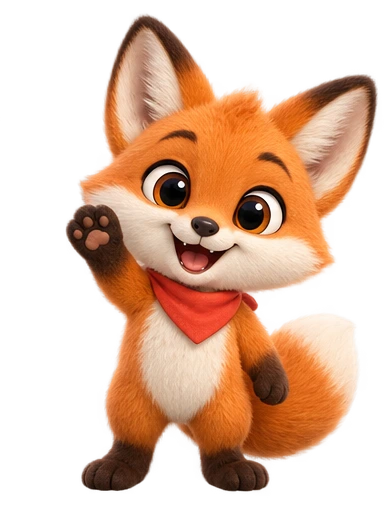
What is a PNGtuber, and how is it different from a VTuber?
A PNGtuber appears on stream as a drawn character instead of a webcam, and the character is a small set of images that swap based on the microphone. While you are quiet, the app shows the idle image. When your voice crosses a loudness threshold, it shows the talking image. Most apps add an automatic blink and let you put extra expressions (laughing, angry, asleep) on hotkeys. When the images are animated GIFs, people sometimes say GIFtuber; the mechanism is identical.
A VTuber uses a rigged model instead: a Live2D model (a layered 2D illustration cut into parts and rigged to bend) or a 3D model, driven live by face tracking from a webcam or phone. It turns its head when you do and shapes its mouth as you speak. That expressiveness has a price: rigging is specialist work, and tracking needs a camera and a share of your PC.
| PNGtuber | VTuber | |
|---|---|---|
| What drives it | Microphone volume, plus hotkeys | Face tracking (webcam or phone) |
| What you need | Two or more images or animated loops | A rigged Live2D or 3D (VRM) model |
| Typical software | veadotube mini, PNGTube-Remix, PNGTuber Plus | VTube Studio (Live2D), VSeeFace (VRM) |
| Webcam | Not needed | Needed (or a phone) |
| Mouth and head | Swaps between drawn states | Follows your real face |
| Time to first stream | An afternoon | Days to weeks if commissioned |
Some guides treat PNGtubing as the entry tier of VTubing; others keep the word VTuber for rigged models. Either way, PNGtubers swap and VTubers track. If you want a recognisable character who reacts when you talk, a PNGtuber gets you there with no camera and very little money.
What a PNGtuber needs: idle, talking, blink and expression states
The minimum is two images: mouth closed and mouth open (veadotube mini will even run on one image and shake it when you speak). The common setup:
- Idle (silent). On screen most of the stream, so it must loop invisibly.
- Talking (voice detected). Shown in bursts, often under a second at a time.
- Blink variants (optional). veadotube mini allows four images per state: closed or open mouth, each with open or blinking eyes. Animated images that already blink can skip these.
- Expressions (optional). Extra states on hotkeys: laugh, surprised, angry, sleepy for the BRB screen.
Whatever produces the art, the files must follow a few rules or the swap looks broken:
- Every state uses the same canvas size, with the character in the same spot. Otherwise the avatar jumps sideways whenever you speak.
- A transparent background in the file itself (PNG, GIF or APNG).
- Sensible size. veadotube’s docs recommend around 1024×1024 and no more than 2048×2048, because every frame of an animated image is decompressed into memory. For a corner avatar on a 1080p stream, 360–480 px animated images are plenty.
- Framing that matches the placement: chest-up for a corner companion, full body for a BRB scene.
PNGtuber apps compared: which accept GIF, APNG or WebM
Choose the app before you make the files, because the app decides the format. Here is what each accepts, checked against the developers’ own pages and docs:
| App | Animated formats | States and hotkeys | Platforms and price |
|---|---|---|---|
| veadotube mini (2.2) | GIF and animated PNG; the docs add that WebP “apparently” works now. No video. | Four images per state, unlimited states, shortcuts from keyboard, mouse, gamepad or MIDI, with a “while pressed” mode | Windows, macOS, Linux. Name your own price. |
| PNGTube-Remix | GIF, APNG and sprite sheets | Up to 200 states; per-sprite talk and blink toggles; asset toggles on keys | Windows and Linux. Free and open source. |
| PNGTuber Plus (1.4.5) | PNG only; animation via horizontal sprite sheets. The developer has said APNG is not supported. | 10 costumes with hotkeys that work when unfocused; sprites can show only while speaking or blinking | Windows, macOS, Linux. Name your own price. Last updated March 2024. |
| Flood-Tuber (OBS plugin) | PNG, APNG, WebP, GIF | Idle, three talking frames, blink, a random action pose; listens to an OBS audio source | Windows 64-bit. Free and open source. |
| Discord StreamKit voice widget | Discord avatars by default; custom “reactive images” via CSS can be GIF, APNG or animated WebP, not WebM | Speaking or silent, per person in the voice channel; no hotkeys | OBS browser source; the Discord desktop app must be running. Free. |
| OBS Media Source (DIY) | Transparent WebM | Two sources switched by an audio-triggered macro | Windows, macOS, Linux. Free. |
Two things stand out. No dedicated PNGtuber app plays WebM: GIF works everywhere, APNG is the upgrade for soft edges, and WebM only works inside OBS. And the “maker” apps do not make art: PngTuber Maker on Steam (free, Windows, early access) needs at least two PNGs you supply, like everything above. The software is free or nearly so. The images are the hard part.
A quick way to choose: veadotube mini for the simplest path and the best docs; PNGTube-Remix for layered parts with physics; PNGTuber Plus if your art is already split into sprites; Flood-Tuber if you would rather not run another window. The StreamKit voice widget suits co-hosted streams, where each friend in the Discord call gets an image that reacts when they talk.
How to make a PNGtuber with AI, step by step
Ordinary AI image generators fail at exactly what PNGtubing needs: a matching set. Ask for “the same character, mouth open” and you usually get a close relative with different hair. Character Animation AI avoids this with an approval step: you approve one design, it is locked, and every clip you animate afterwards is that same character (the how it works page shows the flow).
- Design the character. Describe it or upload a reference, and pick a style: Anime for the classic VTuber look, Flat for a clean cartoon, Soft 3D for a plush feel, Stylized for something painterly. A photo of yourself becomes an illustrated avatar that resembles you, not a photoreal double. Regenerate until it is right, then approve it.
- Idle state. Animate the design with the Idle preset at the default 6 seconds.
- Talking state. Animate it again with a Custom motion at the same length.
- Expressions. One Custom clip per hotkey expression.
- Edit every clip the same way in the free editor: Back and forth for anything that loops (it plays forward then rewinds, so the loop never jumps), zoom/reframe to a chest-up crop for a corner avatar, and output size 480 (Website) or 360 (Small). Use identical zoom and pan on every state, or the character will shift when the app swaps images.
- Download each edited version’s GIF for veadotube mini, PNGTube-Remix or Discord, or its WebM to convert or use in OBS.
A design prompt that works for a streaming avatar:
A cheerful girl with short teal hair in a messy bob, oversized lilac hoodie,
round headphones around her neck, star hairclip, big expressive eyes,
front view, standing, friendly smile.
And a motion for each state:
| State | Motion | Editor settings |
|---|---|---|
| Idle | Idle preset | Back and forth, reframe, 360 or 480 |
| Talking | Custom: “talks animatedly with small hand gestures, staying in place and facing the viewer” | Same length, reframe and size as idle; Back and forth |
| Laugh | Custom: “laughs, shoulders shaking and eyes squeezed shut, then settles into a relaxed smile” | Back and forth |
| Surprised | Custom: “jolts back in surprise with wide eyes and both hands raised, then freezes” | Forward, trimmed to the reaction |
| Sleepy (BRB) | Custom: “nods off slowly, head drooping, then startles awake and drifts off again” | Back and forth, full body |
Cost: one credit for the design and one per animation; edits and downloads are free. The 3 free credits on a new account therefore cover a complete two-state PNGtuber (design, idle, talking), and each expression is one more credit. If the design needs work, the character prompt guide helps the first draft land.
GIF, APNG, sprite sheet or WebM: exporting for your PNGtuber app
GIF works in every app above except PNGTuber Plus. GIF transparency is on or off per pixel, so edges are hard rather than soft. The studio’s GIF runs at 15 fps and is 480 px wide at most (or the smaller size you chose). Over a busy game that is rarely noticeable; over a flat bright background, wispy hair can look jagged.
APNG keeps soft edges and works in veadotube mini and PNGTube-Remix. Convert the edited WebM with FFmpeg:
ffmpeg -c:v libvpx-vp9 -i idle.webm -vf "fps=15,scale=480:-1:flags=lanczos,format=rgba" -plays 0 -f apng idle.pngThe -c:v libvpx-vp9 before the input matters: FFmpeg’s built-in VP9 decoder ignores the alpha channel, which gives you a black background. -plays 0 loops forever. APNGs are much larger than GIFs and the app holds every frame in memory, so stay at 360–480 px. The transparent formats guide explains the alpha details.
Sprite sheets are what PNGTuber Plus needs: one PNG with the frames side by side. Its frame slider stops at 64, but very wide images can fail to load, so keep the loop short. Trim the talking clip to 1 second and set Back and forth in the editor (a seamless 2-second loop), download the WebM, then:
ffmpeg -c:v libvpx-vp9 -t 2 -i talk.webm -vf "fps=8,scale=360:-1:flags=lanczos,format=rgba,tile=16x1" -frames:v 1 talk-sheet.pngThat is 16 frames of 360 px in a 5,760 px strip. In PNGTuber Plus, set the sprite’s frame count to 16 and adjust the animation speed until the motion looks right.
One-shot reactions. veadotube mini plays a non-looping GIF once and holds the last frame, which suits “surprised”. To write one:
ffmpeg -c:v libvpx-vp9 -i surprised.webm -filter_complex "fps=15,scale=480:-1:flags=lanczos,split[a][b];[a]palettegen=reserve_transparent=1[p];[b][p]paletteuse=alpha_threshold=128" -loop -1 surprised-once.gifWebM directly in OBS. For full-quality soft edges and no extra app, add the idle and talking WebMs as two looping Media Sources at the same position, install the free Advanced Scene Switcher plugin, and build two macros: when your microphone’s Output volume is above a threshold, show the talking source and hide the idle one; when it drops below, the reverse. It works, but expect more threshold tuning than in a dedicated app.
Setting up your states in veadotube mini (and the alternatives)
- Open veadotube mini and click the state in the top-right corner to edit it.
- Add the idle GIF to the closed mouth, open eyes slot and the talking GIF to the open mouth, open eyes slot. Remove the images from the two blinking slots; the clips carry their own eye movement.
- In the microphone settings, pick your mic and a noise filter, then set the two sliders: how loud you must be to open the mouth, and how long the closed-mouth image waits after you stop. Raise the first until keyboard clicks no longer trigger it; lengthen the second if the avatar flickers between words.
- Duplicate the state for each expression and replace its images. Put the same expression GIF in both mouth slots, so the laugh plays whether you are talking or not.
- Give each expression a shortcut (keyboard, mouse, gamepad or MIDI). Use while pressed for momentary reactions, and turn on playing from the start in the state’s properties for one-shot clips.
- Save the avatar as a
.veadofile. mini auto-saves, but a backup you control is worth having.
One behaviour suits AI clips well: veadotube keeps animated images in sync when it swaps between the closed- and open-mouth images, so a GIF does not restart every time you speak. With idle and talking clips of the same length and edit, the swap lands on the matching moment of each loop. Keep the built-in shake and jump effects subtle; the clips already move.
PNGTube-Remix: import sprites with Files › Import and flag each one Should Talk or Should Blink in its properties. States are renamed and given keys through the Remap button above the state list. PNGTuber Plus: import each sprite sheet, set its frame count, make it show only while speaking or only while silent, and use costumes for expressions.
Getting your PNGtuber into OBS with a transparent background
PNGtuber apps run in their own window, and the capture method decides whether transparency survives. For veadotube mini, the official OBS guide lists:
| System | Transparent capture | Fallback (needs a colour key) |
|---|---|---|
| Windows | Spout2 Capture (turn on Spout stream in mini’s window settings), or Game Capture with Mode “Capture specific window” and Allow Transparency ticked | Window Capture, method “Windows 10 (1903 and up)”, Capture Cursor off |
| macOS | Syphon Client (Syphon stream on in mini, Allow Transparency ticked in OBS) | macOS Screen Capture, Method “Window Capture” |
| Linux | PipeWire Video (mini 2.2 or later, PipeWire stream on), or Game Capture through obs-vkcapture | Window Capture for your display server |
- For Game Capture and Syphon, set mini’s background to transparent in its display settings. With other methods, use a flat colour the character does not contain and add Filters › Effect Filters › + › Colour Key.
- Turn on hide UI in mini’s program settings so menus never appear on stream, and set the source’s Scale Filtering to Bilinear (Point for pixel art) to reduce fringing.
- PNGTube-Remix: its FAQ says to set the background colour to Transparent and Mode to PNGTube in the top bar, then use Game Capture with Allow transparency.
Using the avatar as a webcam in Discord, Zoom or Meet: click Start Virtual Camera in OBS’s Controls dock, then choose OBS’s virtual camera in the call app. Webcam feeds have no transparency, so put a background behind the avatar in that scene first.
Discord voice overlays are a browser source instead. In StreamKit’s voice widget you pick the server and channel and can turn on Show Speaking Users Only or Hide Names; replacing the avatars with reactive images is done with custom CSS or a third-party generator.
Once the avatar is live, the same character can handle alerts, BRB loops and stinger transitions as transparent WebMs; the stream mascot and alerts guide covers that setup.
When you need a VTuber model instead
Know the limits. Generated clips are video loops, not a puppet: Character Animation AI does not produce a Live2D rig or a 3D model, does no face tracking, and has no lip sync. Your avatar will not turn its head when you look at chat. A VTuber model is the right call when:
- You talk for hours (just chatting, podcasts, reactions) and viewers read your face, so a handful of states feels thin.
- You want real eye contact, head turns and mouth shapes that follow your voice.
- You plan to use collab apps or full-body tracking that expect a VRM model.
The established routes:
- VTube Studio runs Live2D Cubism models only, with webcam tracking built in and a phone app for better tracking. It is free on Steam; a watermark shows during webcam tracking unless you buy the Remove Watermark add-on.
- VSeeFace is free for Windows, drives VRM 0.x (not VRM 1.0) and VSFAvatar models from a webcam, and captures into OBS with Game Capture and Allow transparency, or Spout2.
- VRoid Studio, from pixiv, is a free 3D character creator for Windows, macOS and iPad that exports VRM: the cheapest route to a tracked avatar you built yourself. Check which VRM version your tracking app reads before exporting.
- A commissioned Live2D model gives a unique hand-drawn look. The illustration and the rigging are often separate commissions, so get quotes for both.
The two combine well: many VTubers keep the tracked model for the main scene and use short clips for alerts, BRB screens and emotes. Upload your model’s reference sheet and the studio redraws it, close but not pixel-identical; the guide to animating a character from an image explains what carries over.
Your first PNGtuber this afternoon: a checklist
- Pick the app first: GIF for veadotube mini, PNGTube-Remix and Discord; APNG for soft edges; sprite sheets for PNGTuber Plus; WebM only inside OBS.
- Design and approve the character, then generate Idle and a Custom talking clip at the same length.
- Edit both identically: Back and forth, the same zoom and pan, 360 or 480 px.
- Calibrate the microphone threshold and delay with your real voice and keyboard.
- Capture with transparency and record a 30-second test before going live.
- Add expressions on hotkeys once the basics feel right.
A note on licensing. A hobby stream that earns nothing is personal use, covered by the Free, Starter and Creator plans. Once the channel makes money (Twitch Affiliate or Partner payouts, YouTube ads or memberships, sponsorships), that is commercial use, and only the Professional plan includes a commercial licence. Details are on the pricing page.
The same character also makes good emotes and Discord stickers; the animated stickers guide covers the size limits. To start, create a free account: 3 free credits are enough for a design, an idle state and a talking state, which is a complete PNGtuber.